Get the apps
Apps › Windows › Brightness Controller
NewSee what's new in Brightness Controller
FreeVersion 1.0.5Windows 10 and 11

A tiny tray app that sets the brightness of your laptop screen and external monitors from one Apple-style panel.

Windows 10 and 11 · About 2.4 MB
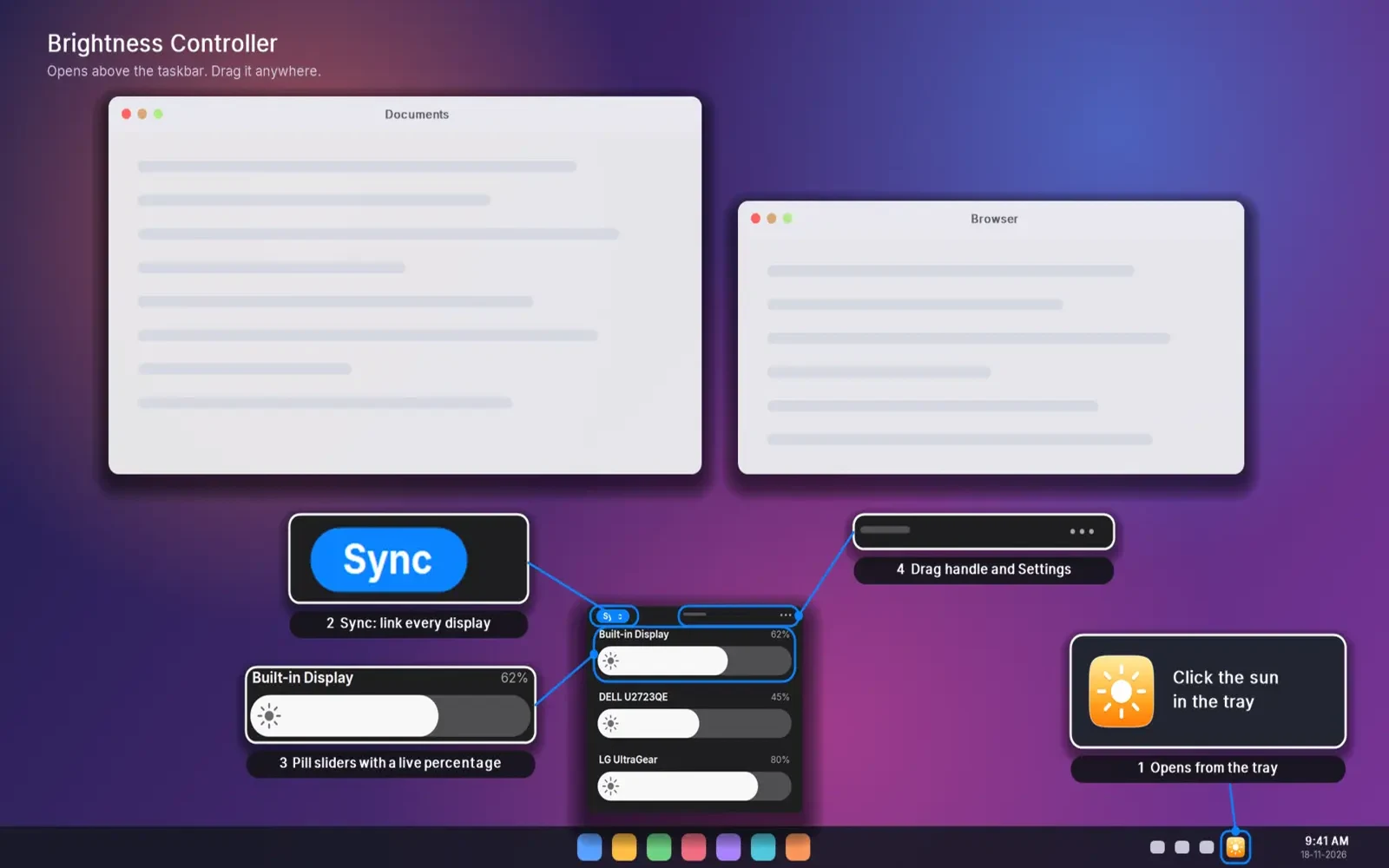
Brightness Controller panel above the taskbar with Sync and a slider for each display

A slider for each screen. Laptop screens and external monitors.
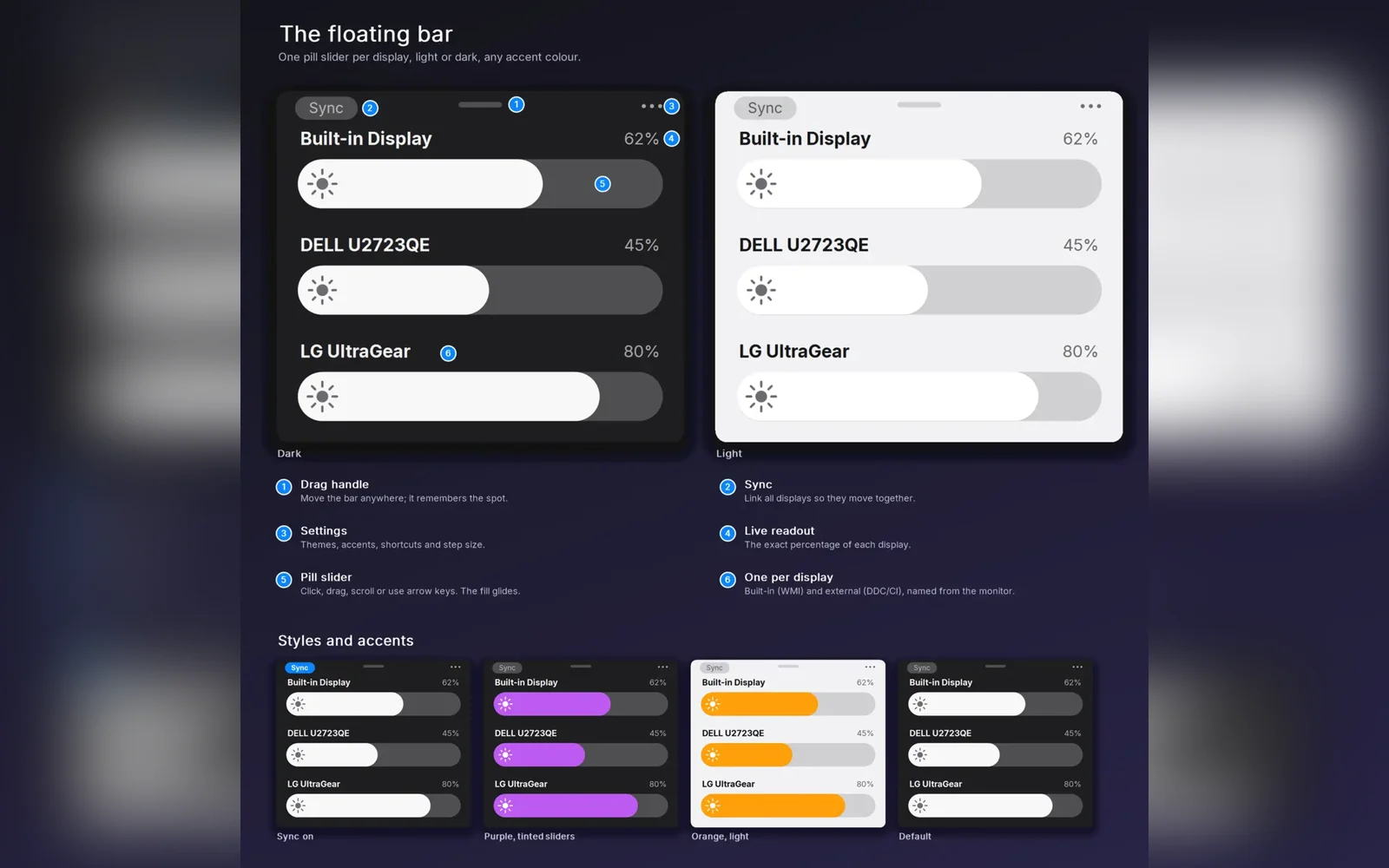
The floating bar in dark and light, with annotated controls and accent styles

Drag it anywhere. Light or dark, any accent colour.
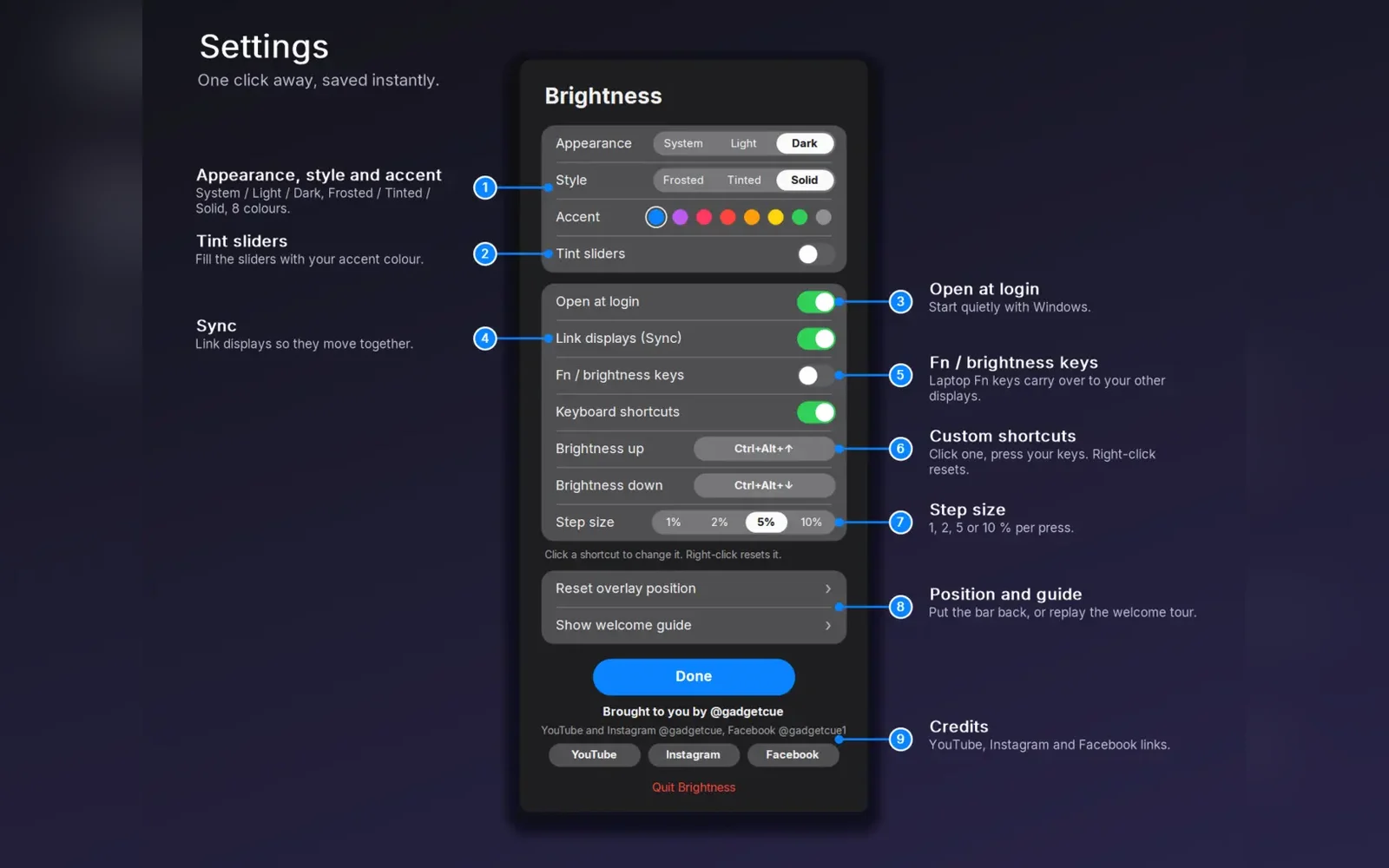
Brightness Controller settings with annotated options

Shortcuts, step size, light or dark. Eight accent colours.
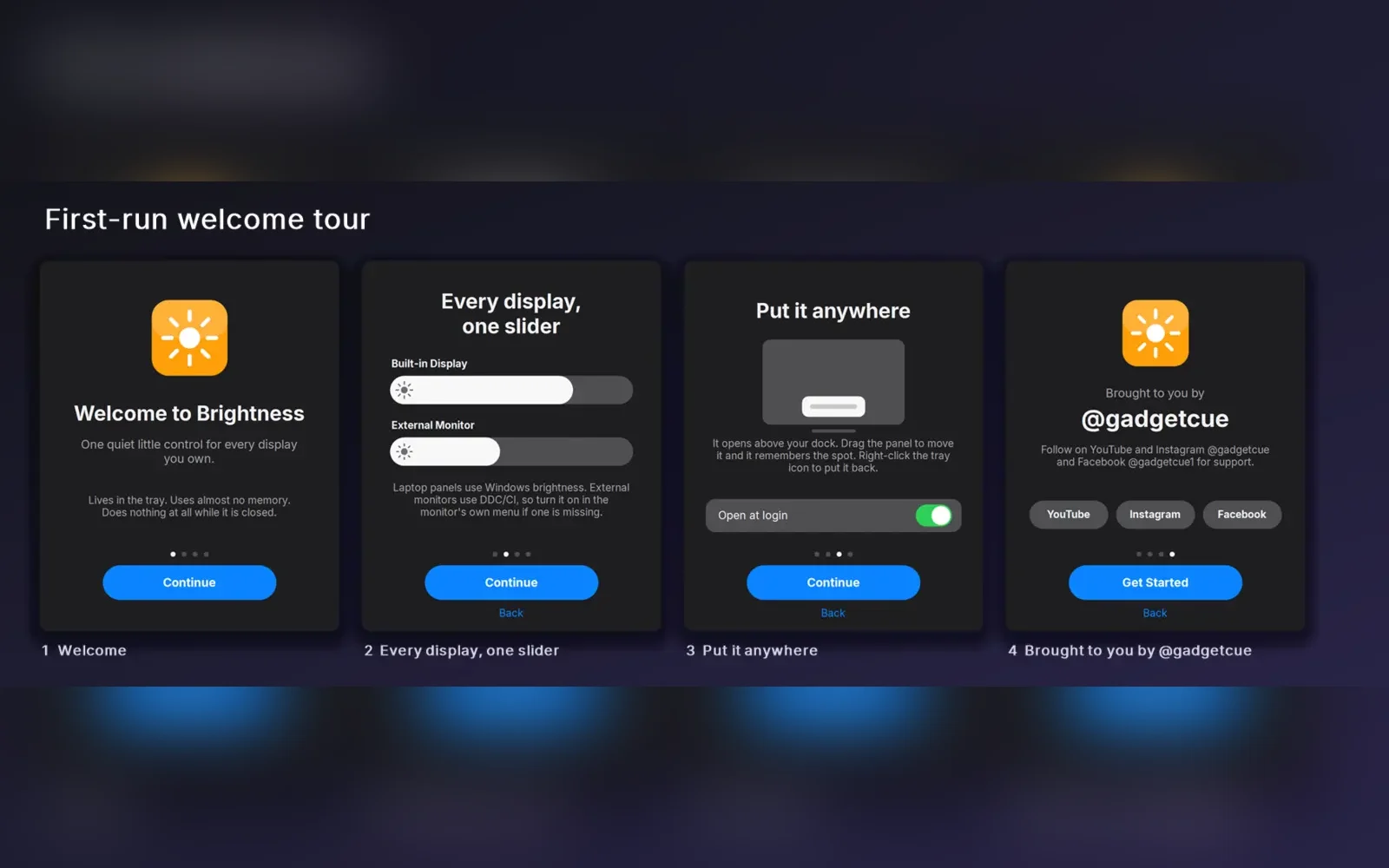
The four-step welcome tour

A quick tour on first run. Four short steps.

Five things it does

Small, quiet and always in the tray.

DisplaysOne panel, every screenA slider for each display, with an optional Sync to move them together.
MonitorsLaptops and monitorsLaptop screens work through WMI. External monitors work if they support DDC/CI.
ShortcutsKeys for brightnessDefault shortcuts are Ctrl+Alt+Up and Ctrl+Alt+Down.
SettingsMake it yoursShortcuts, step size, light or dark, and eight accent colours.
FootprintTiny by designAbout 2.4 MB. It idles at about 2 MB with no background polling.
Panel

One panel, every display.

A slider for each screen.

Move each display on its own, or turn on Sync to move them together.

  • A slider per display
  • Optional Sync
  • Laptop screens and external monitors
Brightness Controller floating bar, dark and light
Settings

Set it up once.

Shortcuts, step size and accent colour.

Choose light or dark and one of eight accent colours.

  • Shortcuts and step size
  • Light or dark
  • Eight accent colours
Brightness Controller settings

A closer look

Default shortcuts

Adjust brightness without opening the panel.

CtrlAlt↑
CtrlAlt↓

Light on memory

It stays out of your way.

~1.2 MBdownload
~2 MBmemory at idle
0background polling

Free. No account.

Brightness Controller app icon
Brightness ControllerDisplay brightness
Price
Free
Version
1.0.5
Runs on
Windows 10 and 11
Size
About 2.4 MB
Free

Download, install and you are done.

Coming soon

Install in three steps

  1. Download BrightnessController-Setup-1.0.5.exe and run it.
  2. If SmartScreen appears, click More info, then Run anyway.
  3. Open it from the tray icon. Default shortcuts are Ctrl+Alt+Up and Ctrl+Alt+Down.

What's new

Release notes for Brightness Controller.

Version 1.0.5 · Nov 18, 2026

What's new

  • Screen mockups for the README (docs/mockups): a full-screen desktop with the tray icon and the floating bar and magnified callouts, the floating bar at 3x with numbered features (light, dark, sync, accent colours), the Settings window with every feature numbered, and the four-page welcome tour.
  • Developer tooling that produces those images from the real app: tools/capture-docs.ps1 (crisp captures at a fixed scale) and tools/make-mockups.ps1 (composes and annotates the mockups).
  • Developer hooks BC_SCALE (render at a fixed DPI scale, e.g. 3 for magnified captures) and BC_DEMO (list made-up displays such as Built-in Display:62,DELL U2723QE:45; their ids match no hardware, so nothing is ever written to a real display).

Changes

  • build.ps1 now finds the Rust toolchain by itself when the rustup shims in %USERPROFILE%\.cargo\bin are missing.
  • README reorganised around the mockups; this changelog rewritten with full detail per version.

Fixes

  • A build after Windows had cleaned the temp folder failed at the link step (the compiled icon resource was gone but cargo still referred to it). build.rs now regenerates the resource whenever it is missing.

No change to the app's behaviour compared with 1.0.4.

Version 1.0.4 · Nov 15, 2026

What's new

  • The installer has an Open at login switch on its first screen, on by default. /S --no-autostart skips it.
  • The installed app repairs its own startup entry at launch if it points at some other copy of the app (an old build, a moved folder). Only the installed copy does this, so a stray development build can never hijack it.

Changes

  • The installer's first screen shows the version, the author and "no administrator needed" under the switch.

Fixes

  • Open at login did not survive upgrades: the installer only rewrote a startup entry that already existed and never created one. It now always writes (or removes) the entry according to the switch.
Version 1.0.3 · Nov 15, 2026

What's new

  • With Sync off the keyboard shortcuts and Fn keys control the display your mouse pointer is on (external monitors are matched by their Windows display name, everything else is the built-in panel).

Changes

  • Meaning of Sync is now explicit: on = every display moves together and shows the same percentage; off = every display is independent.
  • Turning Sync on lines all displays up with the first one at once instead of waiting for the next slider move.

Fixes

  • Sync off was not really off: shortcuts, Fn keys and Windows' automatic dimming of the laptop panel still moved the other displays. A change to the built-in panel now reaches the other displays only when Sync is on.
Version 1.0.2 · Nov 15, 2026

Fixes

  • Sync with the keyboard and the Fn keys, broken by the smooth-ramp change in 1.0.1: displays that started at different values only crept toward each other by a step or two per press. Linked displays now all head for the same value together and match after the first press, still gliding smoothly.
Version 1.0.1 · Nov 15, 2026

What's new

  • Held keys ramp smoothly. Holding a brightness shortcut or an Fn / HID brightness key raises or lowers the brightness at a steady speed (about 1 % per tick, up to 2 % per tick for the 10 % step) instead of jumping.
  • The same glide is used when other displays follow the laptop's Fn keys.

Changes

  • Each press moves a target by your step size; the brightness written to the display glides toward it. The target never runs more than 1.5 steps ahead of what is on screen, so the movement stops almost at once when you let go.
  • Dragging a slider takes over from any running glide. A 16 ms timer runs only while a glide is in progress.

Fixes

  • Long-pressing a key made the value jump straight to the end of the range.
Version 1.0.0 · Nov 14, 2026

First public release.

What's new

Controlling brightness

  • Built-in panels through WMI (WmiMonitorBrightnessMethods), external monitors through DDC/CI (Dxva2).
  • One pill slider per detected display, named from the monitor's own EDID; identical monitors are numbered.
  • Click, drag, mouse wheel or arrow keys (Shift for bigger steps); smooth, time-based slider animation.
  • Writes are coalesced and sent from short-lived worker threads that stay connected for 3 s, so repeated changes are instant.
  • Sync pill and Settings switch to move all displays together.

Keyboard

  • Global shortcuts, default Ctrl+Alt+↑ / Ctrl+Alt+↓, with a "press your keys" recorder (right-click resets).
  • Step size of 1, 2, 5 or 10 %.
  • Fn / brightness keys: the laptop's Fn keys are seen as a change of the built-in panel (WMI event, no polling) and carried to other displays; brightness keys on external HID keyboards are read through Raw Input.
  • Shortcut presses show the bar without taking focus and hide it again after a moment.
  • Hides Windows' own brightness popup for a moment after an outside change.

Interface

  • Opens from the tray icon, bottom centre just above the taskbar (and above MacDock); drag it anywhere, it remembers the spot.
  • Appearance System / Light / Dark, style Frosted / Tinted / Solid, 8 accent colours, optional accent-coloured sliders.
  • Short fade-and-rise open animation; per-monitor-v2 DPI awareness; ClearType-sharp Inter text (embedded).
  • Always opens on top; closes on a click elsewhere, Esc, or a second tray click.
  • Four-page first-run onboarding, Settings window, macOS-style app icon.
  • Credits for @gadgetcue (YouTube, Instagram) and @gadgetcue1 (Facebook) in Settings and the onboarding.

Packaging

  • Per-user single-file installer and uninstaller (Start menu entry, Apps & features entry, silent mode, optional settings removal).

Performance

  • About 1.2 MB executable; about 2 MB working set and 0 % CPU while idle; GDI+, the canvas and fonts are released when the bar closes.
  • No timers, polling or services while hidden.

Fixes made during development

  • First text draw took several seconds on machines with many fonts (text now uses GDI instead of GDI+).
  • WMI brightness writes failed with a type mismatch (values are now sent as 32-bit integers).
  • The bar hid itself about a second after opening when a dock shuffled focus (click-away is now a mouse hook that exists only while the bar is open).
  • A tray icon hidden in the overflow flyout made docks open the flyout first (the icon is now promoted to the visible tray).
  • The Appearance choice was not saved.
  • Dragging across monitors with different DPI snapped the bar back to its default spot.

Known limitations

  • The installer is not code-signed, so SmartScreen may warn on first run.
  • External monitors need DDC/CI enabled in their own menu; some docks, KVMs and adapters block it.
  • Windows' own automatic dimming changes the built-in panel; with Sync on the other displays follow it.

Questions

Does it work on external monitors?

Yes, if the monitor supports DDC/CI. Laptop screens work through WMI.

Does it use much memory?

No. It idles at about 2 MB and has no background polling.

One control for every display.

Free. No account needed.

Coming soonSee all apps