Get the apps
Apps › Windows › 3 Finger Drag
NewSee what's new in 3 Finger Drag
FreeVersion 0.2.0Windows 10 and 11

Rest three fingers on your touchpad to move windows and select text, like on a Mac. Map every swipe, tap and pinch to the action you want. It lives in the tray and installs with no admin rights.

Windows 10 and 11 with a Precision Touchpad · Installs for your user, no admin rights
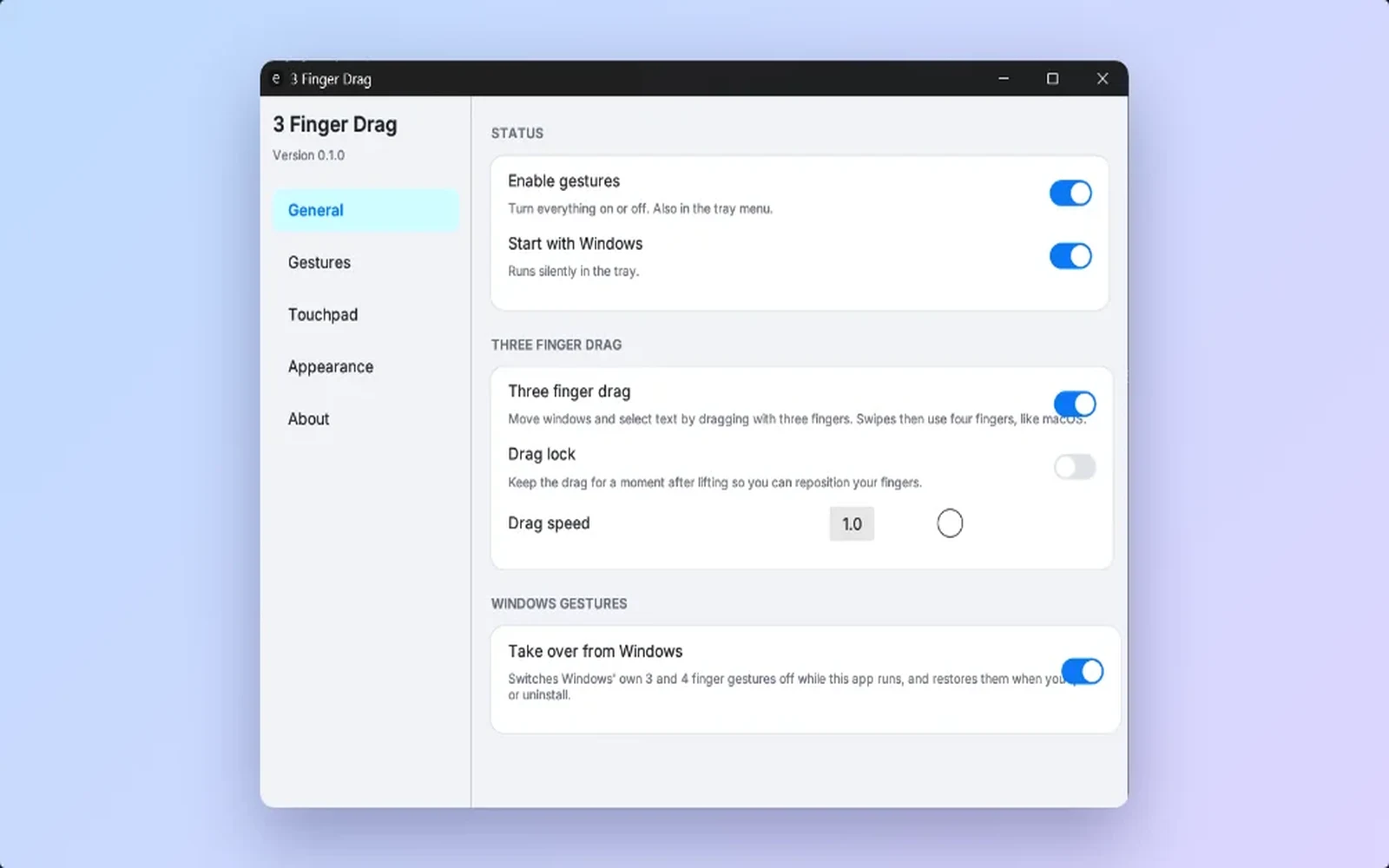
3 Finger Drag general settings

Turn three finger drag on and set drag lock. Lift your fingers and keep dragging.
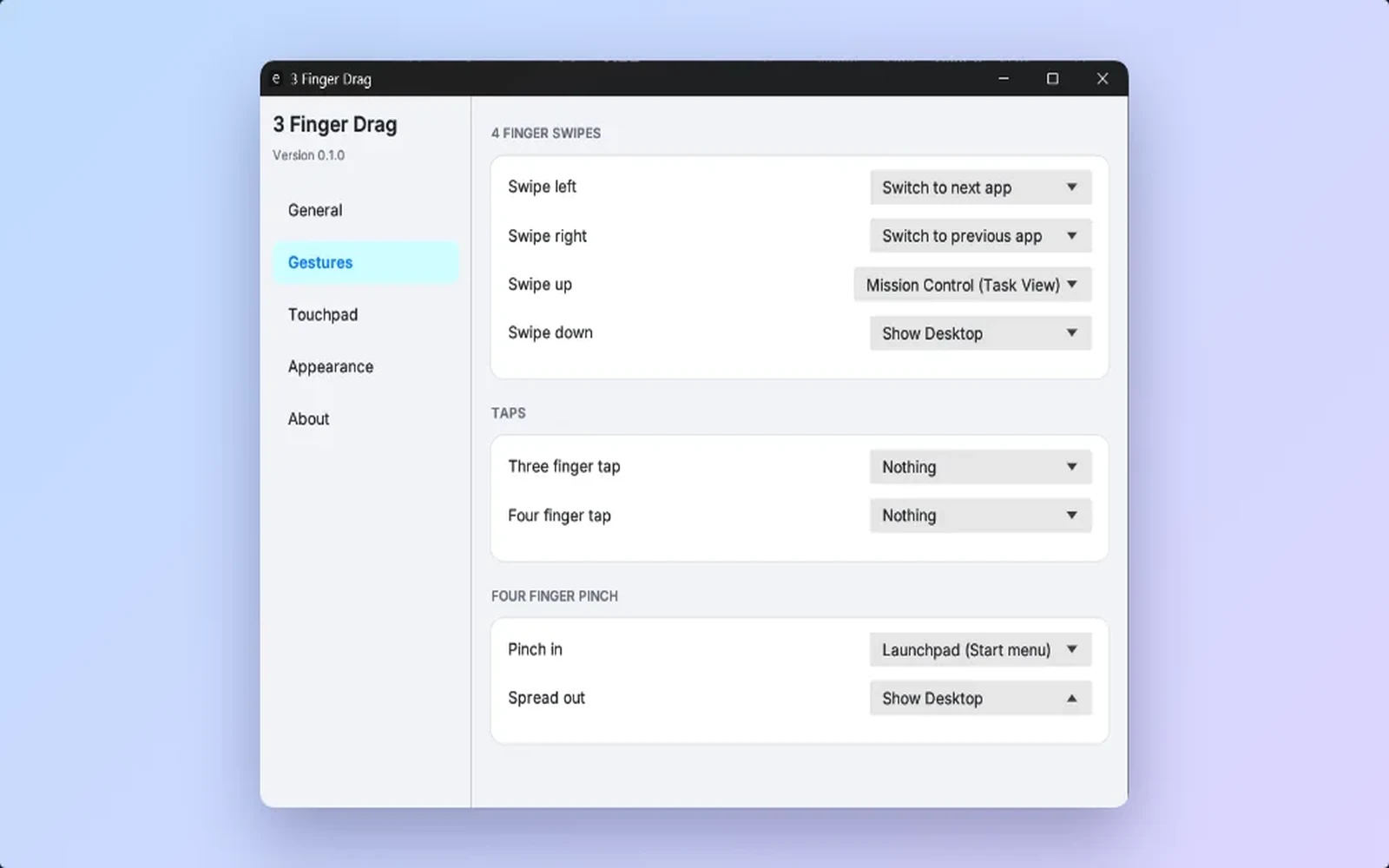
3 Finger Drag gesture settings

Choose what every swipe, tap and pinch does. Task View, Show Desktop, app switching and more.
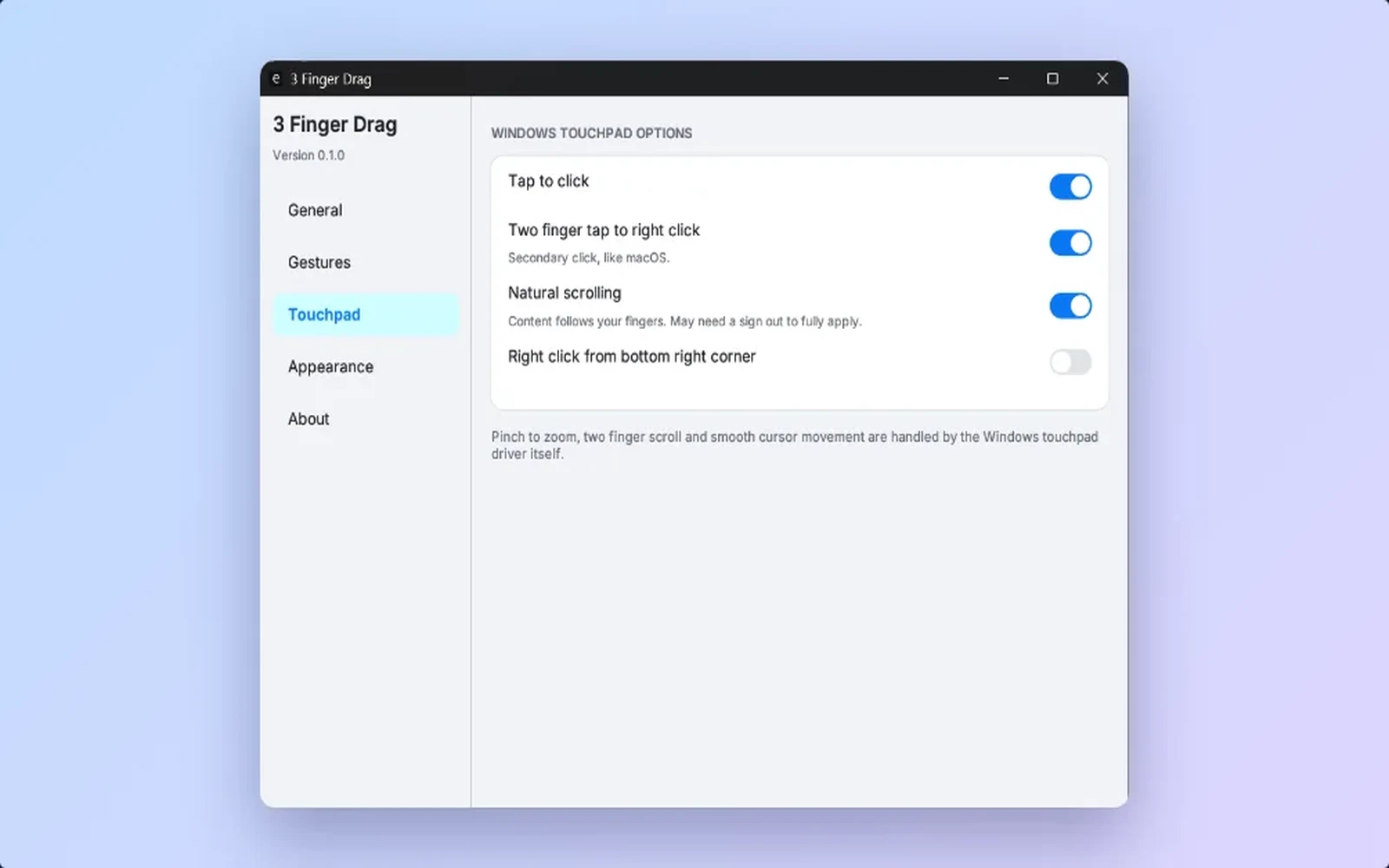
3 Finger Drag touchpad options

Tap to click, two finger right click and natural scrolling. All in one place.
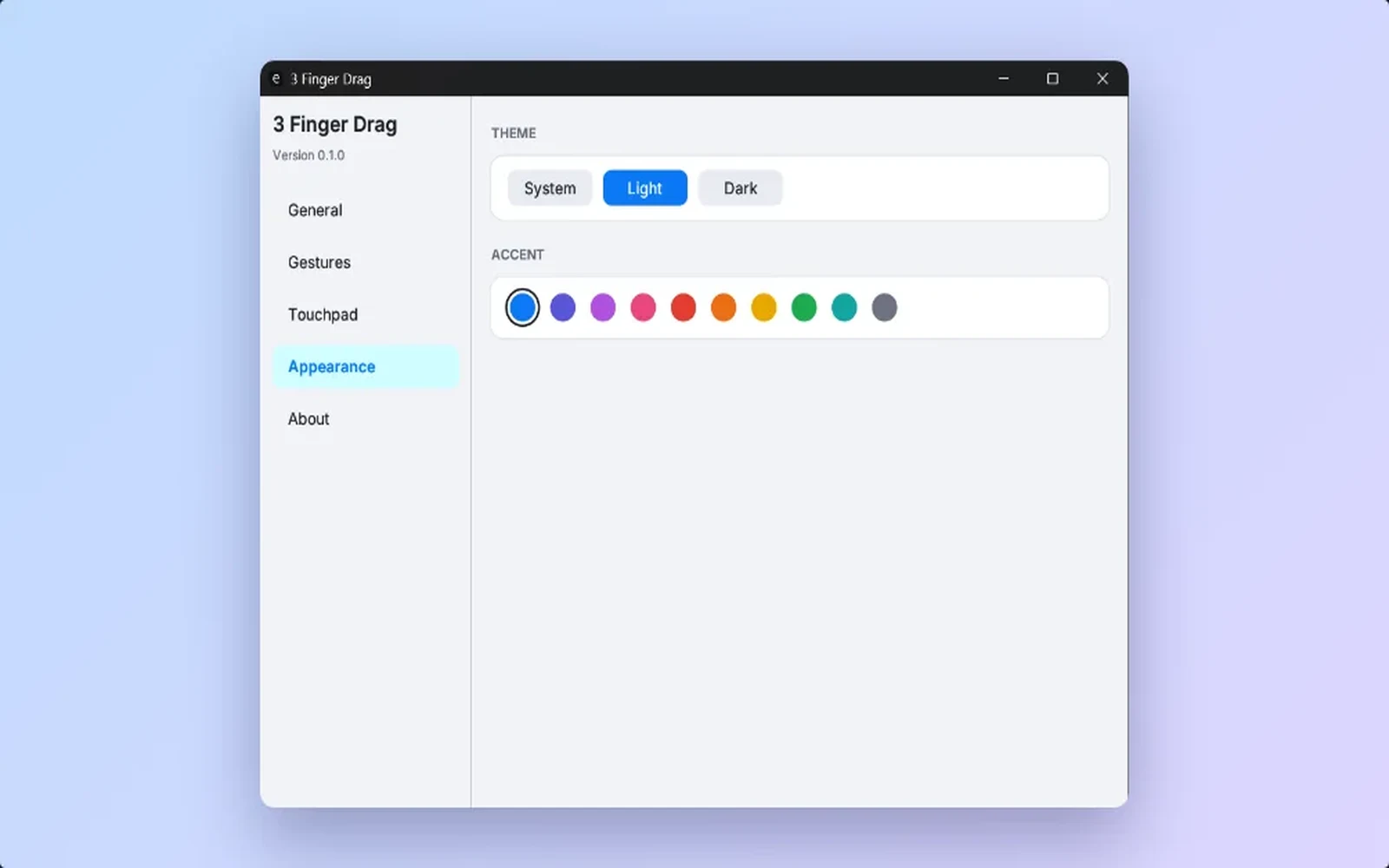
3 Finger Drag appearance settings

Light, dark or follow Windows. Nine accent colours.
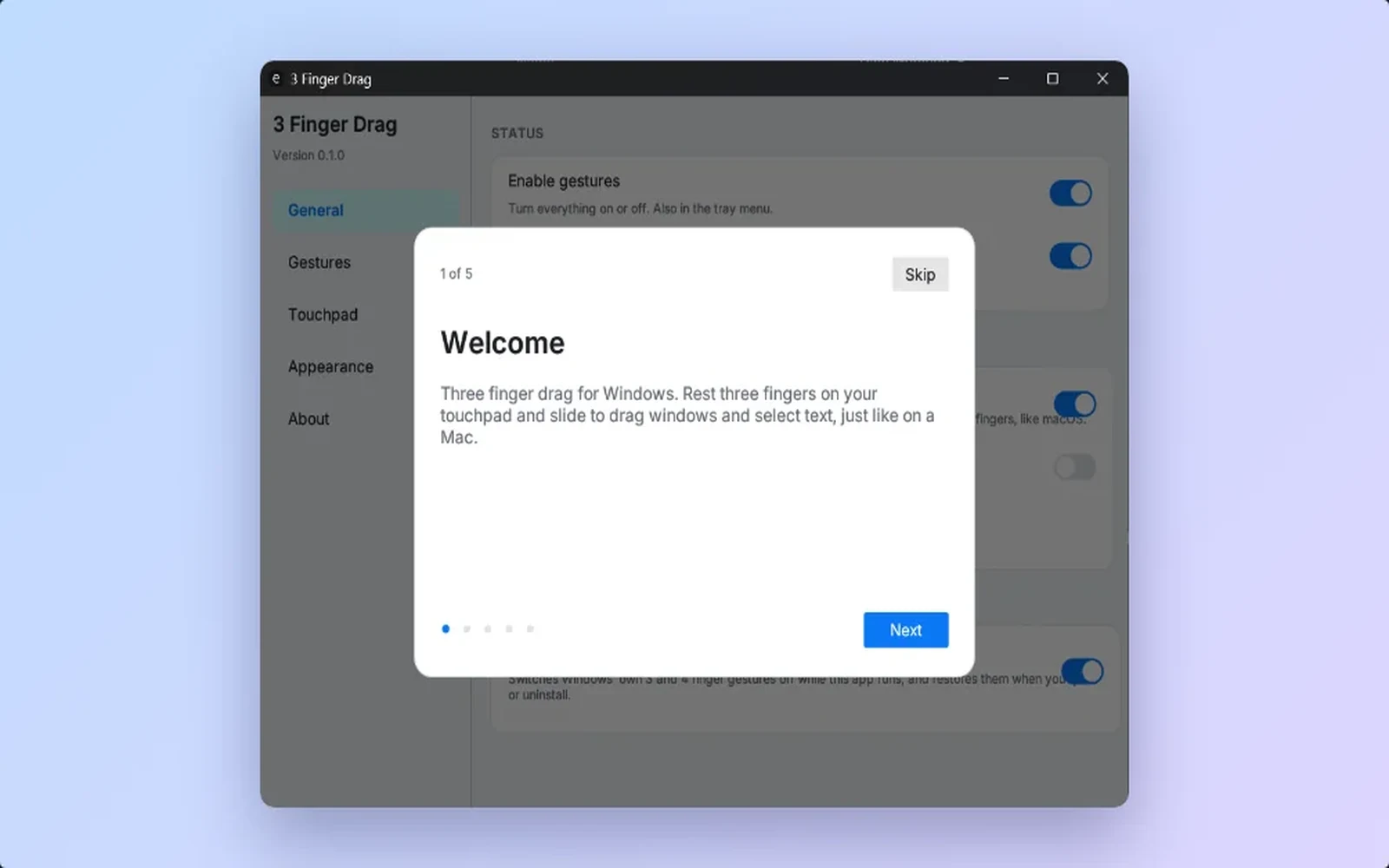
3 Finger Drag welcome tour

A short welcome tour shows you the gestures. No manual needed.
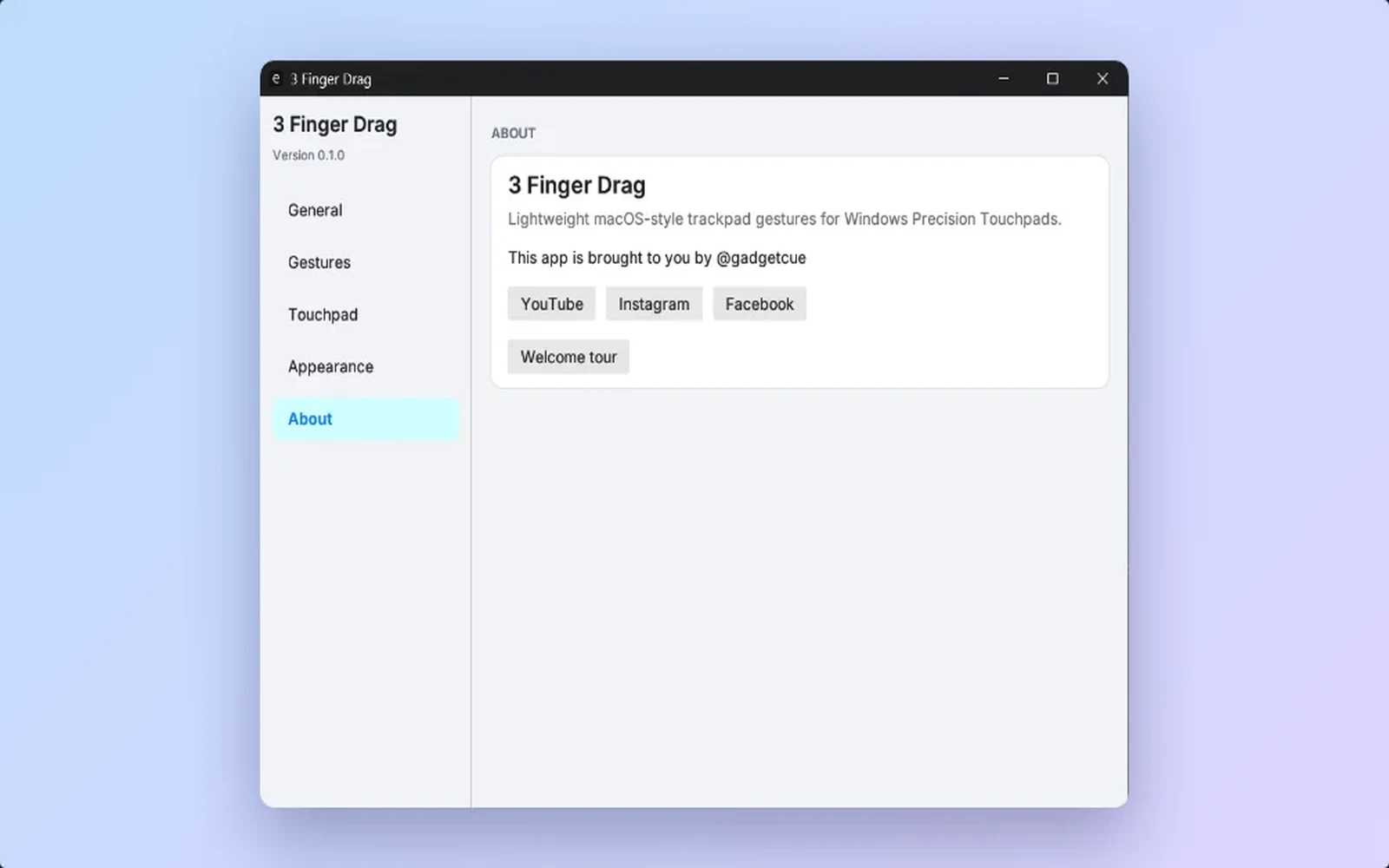
3 Finger Drag about page

Small, written in Rust, and quiet in the tray. Starts silently with Windows.

Six things 3 Finger Drag does

Mac-style gestures for your Windows touchpad.

DragThree finger dragSlide three fingers to move windows and select text. Lift to drop.
Drag lockKeep the drag aliveHold the drag for 200 to 2000 ms after lifting, so you can reposition your fingers.
SwipesFour finger gesturesSwipes, taps and pinch can each be mapped to the action you want.
TakeoverReplaces Windows gesturesSwitches off Windows 3 and 4 finger gestures while running and restores them on quit.
TouchpadOptions in one placeTap to click, two finger right click, natural scrolling and corner right click.
ThemesLight, dark and accentsFollow Windows or pick a theme and one of nine accent colours.
Drag

Move windows with three fingers.

Like a Mac.

Rest three fingers on the touchpad and slide. Windows move and text gets selected. Lift your fingers to drop.

  • Drag lock from 200 to 2000 ms
  • Adjustable drag speed
  • Works with Precision Touchpads
3 Finger Drag general settings
Gestures

Every swipe, tap and pinch is yours.

Map any action.

Four finger swipes switch apps, open Task View or show the desktop. Taps and pinch can be set as well.

  • Next and previous app, Task View and Show Desktop
  • Start menu, Search, Notification Center and Widgets
  • Back, Forward, middle click, right click and Play / Pause
3 Finger Drag gesture settings
Touchpad

Touchpad options in one place.

No digging through Windows.

Switch on tap to click, two finger right click, natural scrolling and corner right click without opening Windows Settings.

  • Tap to click and two finger right click
  • Natural scrolling
  • Bottom right corner right click
3 Finger Drag touchpad options
Appearance

Light, dark or system.

Make it yours.

Follow Windows or choose light or dark, then pick one of nine accent colours. A short welcome tour helps you get started.

  • Nine accent colours
  • Welcome tour
  • Settings window from the tray icon
3 Finger Drag appearance settings

A closer look

Always at hand

It lives in the system tray and stays out of the way.

Tray menuEnable toggle, Settings and Quit
StartupStarts silently with Windows
InstallSingle file, no admin rights

Make it look right

Match Windows, or choose your own.

Light, dark or system9 accentsWritten in Rust

Free. No account.

3 Finger Drag app icon
3 Finger DragTouchpad gestures
Price
Free
Version
0.2.0
Runs on
Windows 10 and 11
Admin rights
Not needed
Free

Download, install and you are done.

Coming soon

Install in three steps

  1. Download ThreeFingerDrag-Setup.exe and double-click it. It installs itself for your account only.
  2. If SmartScreen appears, click More info, then Run anyway. The installer is not code-signed yet.
  3. Open Settings from the tray icon to customise your gestures.

What's new

Release notes for 3 Finger Drag.

Version 0.2.0 · Nov 19, 2026

A visual refresh of the settings window plus sharper rendering on high-DPI screens.

  • macOS-style top toolbar merged with the title bar: app title on the left, centred page pills (General, Gestures, Touchpad, Appearance, About), and a System / Light / Dark quick toggle plus window buttons on the right. The toolbar reserves its own strip above the page, so nothing overlaps; it tightens (smaller pill padding, then hides the title) down to the 680 pt minimum width.
  • Accent-coloured pills: the selected page and theme pill are solid in your chosen accent with automatically chosen dark or light text; hovers use a neutral tint. Changing the accent updates the toolbar live.
  • System, Light and Dark themes from the toolbar or Appearance page, sharing one saved setting; the window frame follows the theme too.
  • Per-monitor v2 DPI manifest and scaling: the settings window, message boxes and installer prompts stay crisp at 100 to 200% scaling and when moving between monitors. The manifest also enables Common Controls 6 and a UTF-8 code page.
  • New app icon embedded in the exe, the settings window, the tray and Add/Remove Programs.
  • Lucide icons for the toolbar tabs, theme toggle and window buttons (ISC licence, see LICENSES-third-party.txt). Apple's SF Symbols are not used for licence reasons.
  • Wider default window: the settings window now opens at 960 pt wide.
  • Refreshed README with light and dark screenshots and laptop mockups.

Screenshots

(The repository is private, so these image links only render for signed-in collaborators.)

Version 0.1.0 · Nov 18, 2026

First public release.

  • Three finger drag: move windows and select text by sliding three fingers, with optional drag lock and adjustable drag speed.
  • Four finger swipes (left, right, up, down), three and four finger taps and four finger pinch, each mapped to an action you choose.
  • Actions include Task View, Show Desktop, next and previous desktop, app switching, Start menu, Search, Notification Center, Widgets, Back, Forward, middle click, right click and Play / Pause.
  • Optional takeover that switches off Windows' own 3 and 4 finger gestures while the app runs and restores them when you quit or uninstall.
  • Touchpad options page: tap to click, two finger tap to right click, natural scrolling and bottom right corner right click.
  • Settings window with light, dark and system themes and nine accent colours, plus a welcome tour.
  • System tray icon with an enable toggle, Settings and Quit.
  • Self-installing single file setup: no admin rights needed, adds a Start menu entry, autostart and an Add/Remove Programs entry.

Questions

Does it need admin rights?

No. The setup installs for your account, adds a tray icon, a Start menu entry, autostart and an Add/Remove Programs entry.

What touchpad do I need?

A Windows 10 or 11 laptop with a Precision Touchpad.

What happens to the Windows gestures?

While it runs, it switches off Windows own 3 and 4 finger gestures. They are restored when you quit or uninstall.

Why does SmartScreen show a warning?

The installer is not code-signed yet. Click More info, then Run anyway.

Drag with three fingers.

Free. No account needed.

Coming soonSee all apps