A fast, light file manager with a pill toolbar, Quick Look, column view, split panes and Smart Clean. Installs for your account with no admin rights.
Windows 10 and 11, 64-bit · Installs for your user, no admin rights
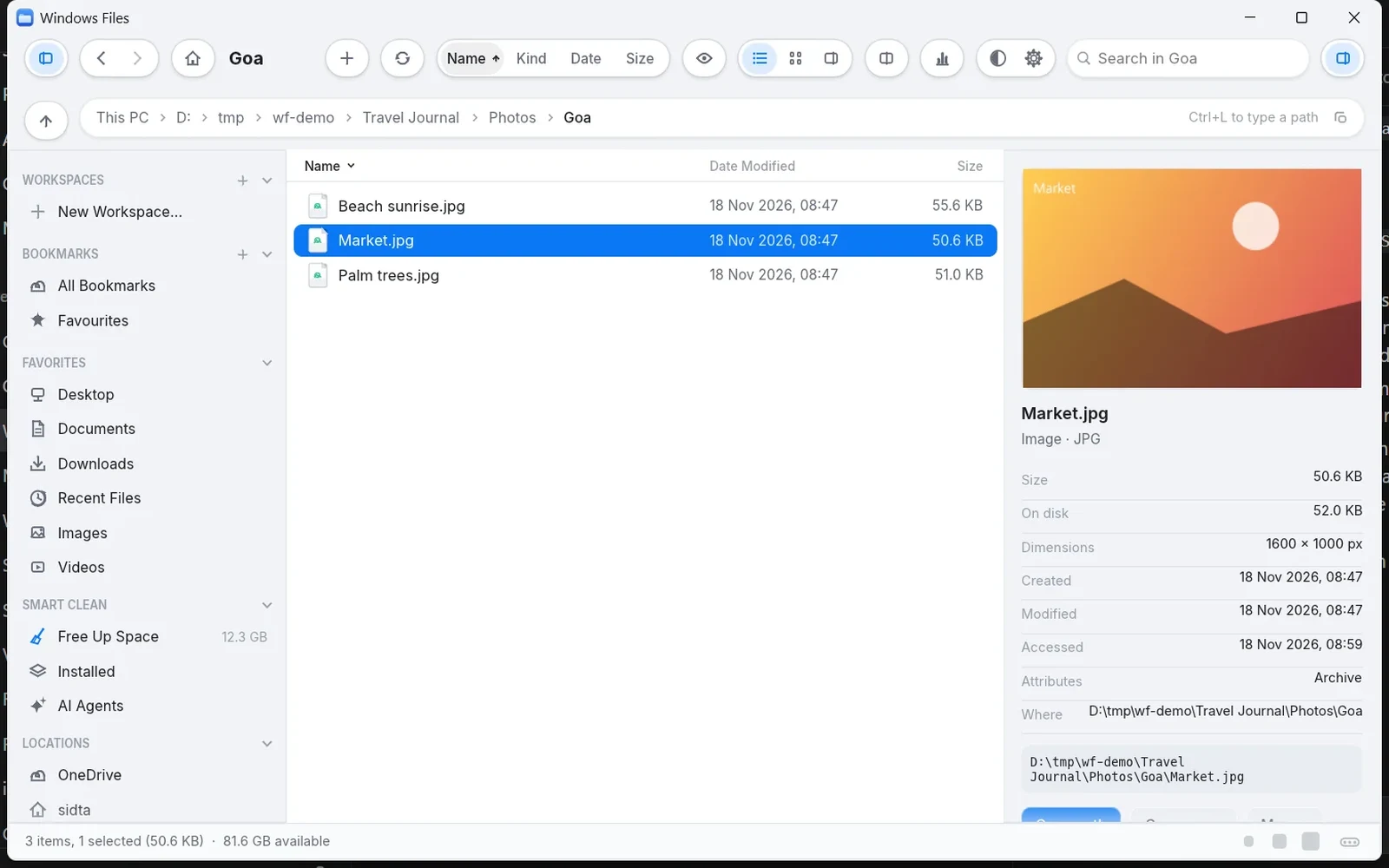
Pill toolbar, tree in the list and a preview pane. Press Space for Quick Look.
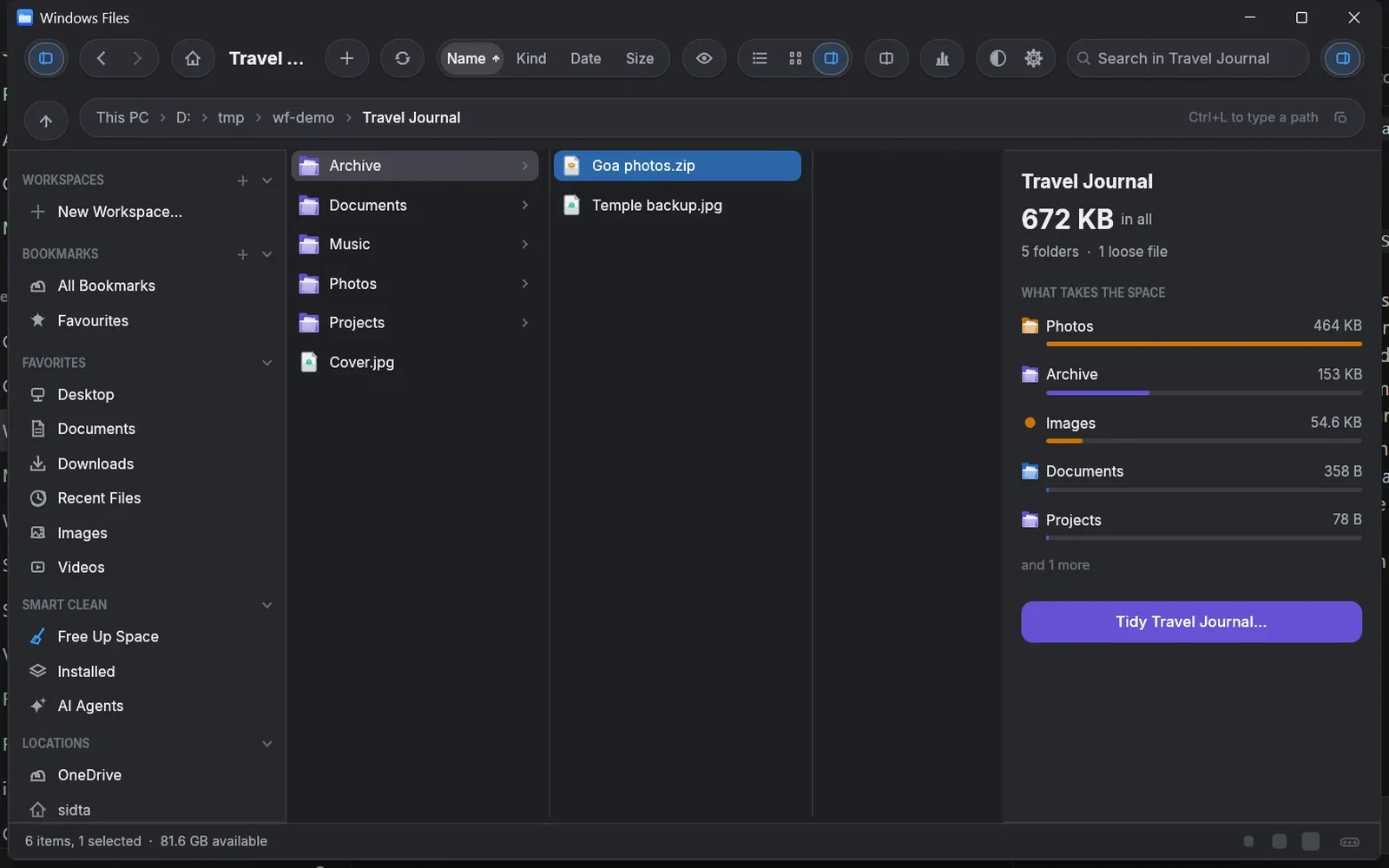
Every folder you pick opens in a new column. Ctrl+3, like Finder.
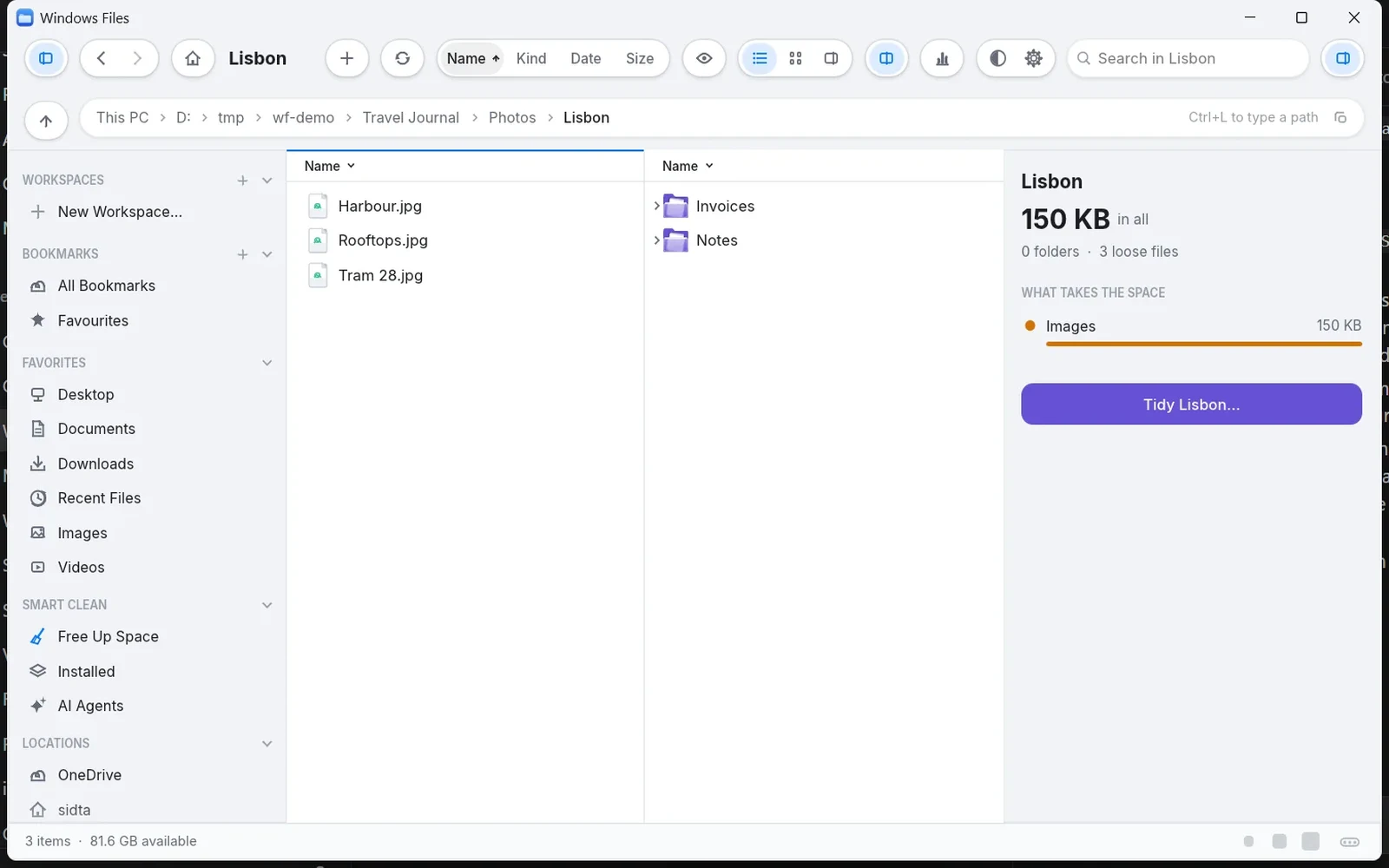
Split the window into up to six panes. Copy and move between them with F5 and F6.
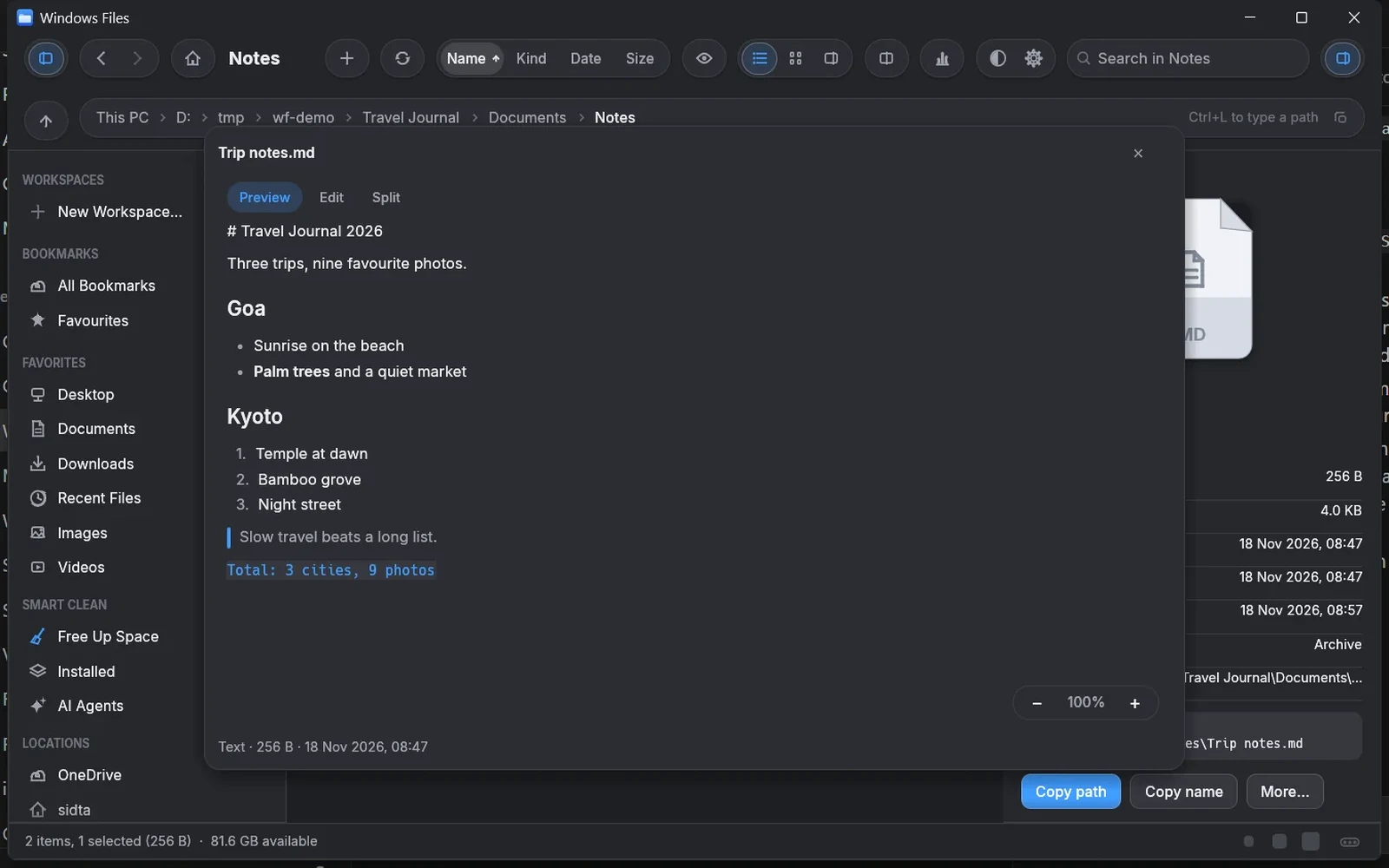
Preview images, video, PDFs, Office files and Markdown. Edit Markdown right in place.
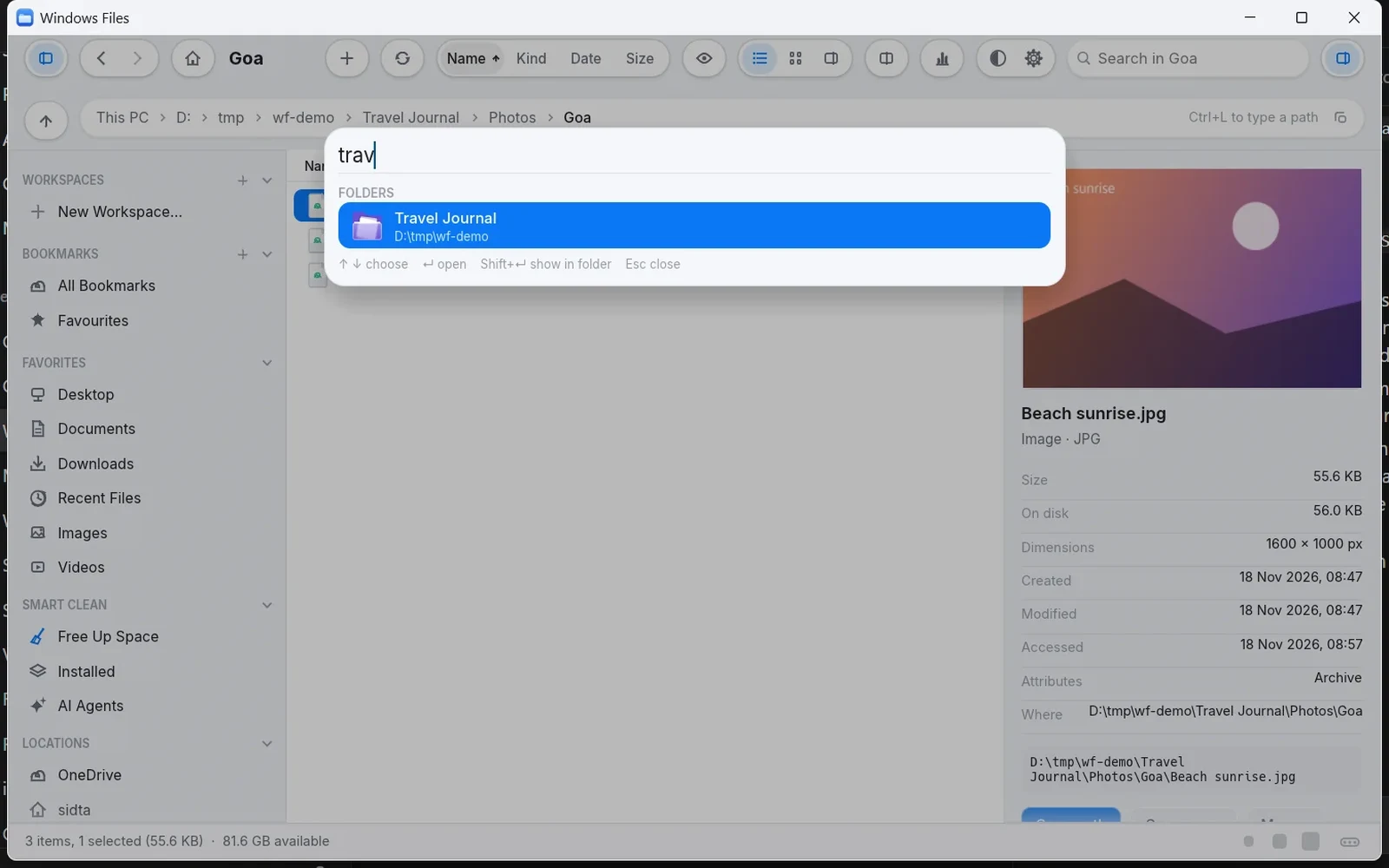
Press Ctrl+K and type to jump to any folder, file or command. Enter opens it.
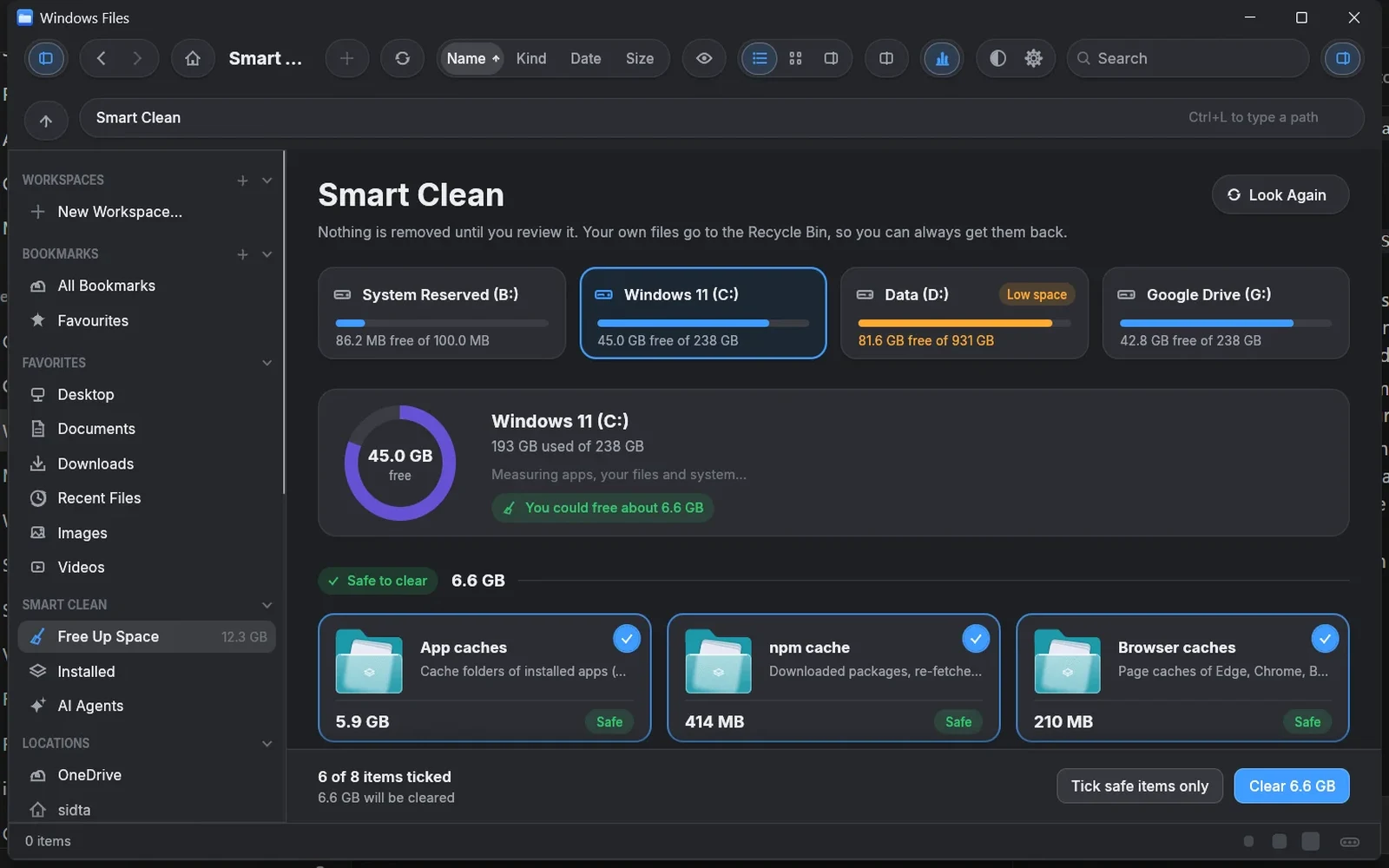
Find what is eating your disk. Nothing is removed until you review it.
A better way to open folders on Windows.
Pill toolbar, tree and preview.
Rearrange the capsules, expand folders in place and see a preview of the selection on the right.

Up to six panes.
Pick a folder and it opens in a new column. Split the window to copy or move between panes.

Preview without opening.
See images, video, audio, PDFs, Office documents and archives. Markdown has Preview, Edit and Split modes.

Folders, files and commands.
Type to find it. Enter opens it, Shift+Enter shows it in its folder. Search can look inside file contents too.

Review before anything goes.
Smart Clean groups caches and larger items by drive. Safe items are ticked, and your own files go to the Recycle Bin.

Pick a shortcut to see what it does.


Small touches that keep it out of your way.
Match Windows, or choose your own.

Download, install and you are done.
Windows-Files-Setup-0.5.0.exe and double-click it. It installs for your account only.Release notes for Windows Files.
Earlier in 0.4.0: Recover Files (deep scan), Run as administrator, signed build, tall What's New, welcome tour. See the changelog.
Screenshots of everything new, in light and dark on a MacBook frame, are in the README.
Windows-Files-Setup-0.3.0.exe installs for your account (no administrator rights), adds Start menu and desktop shortcuts, registers an uninstaller under Settings > Apps, and updates an existing install in place. /S installs silently. Uninstalling also undoes "Make default" and the Windows startup entries and keeps your settings.No. It installs for your account in your Local AppData folder, with a Start menu entry and a desktop shortcut.
Almost. Switch on Make default in Settings and folders opened from other apps, Win+E and the taskbar button open Windows Files. Hold Shift to get File Explorer once. Open and Save dialogs in other apps are drawn by Windows and cannot be replaced.
Switch Make default off in the same place, or uninstall. Either restores File Explorer.
The installer is not code-signed yet. Click More info, then Run anyway.